TiMi AI

We’ve updated our SimpleFX WebTrader. To use the new fixed version of the app you need to clear your browser’s cache. Here’s how to do it in Google Chrome, Firefox, and Safari.
Google Chrome
Go to the browser’s menu in the top-right corner of the app.
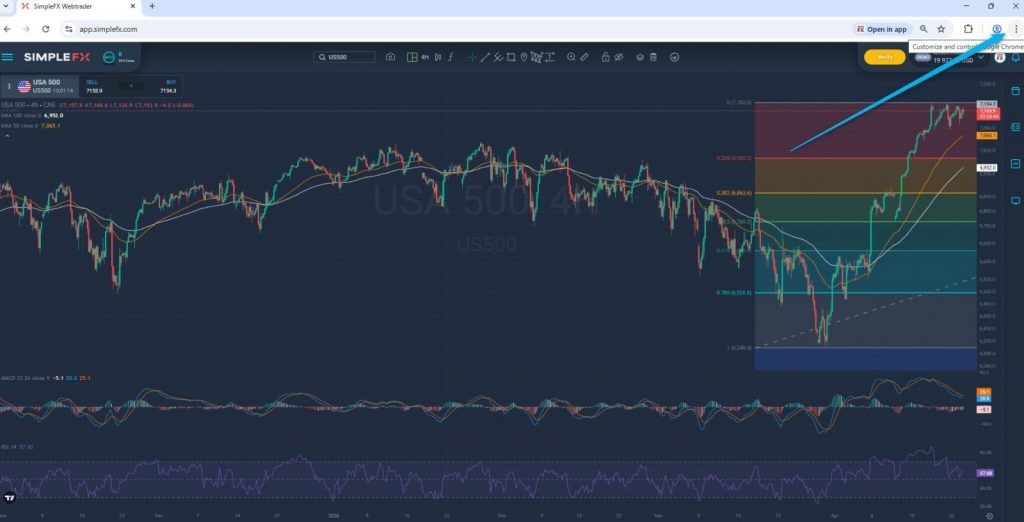
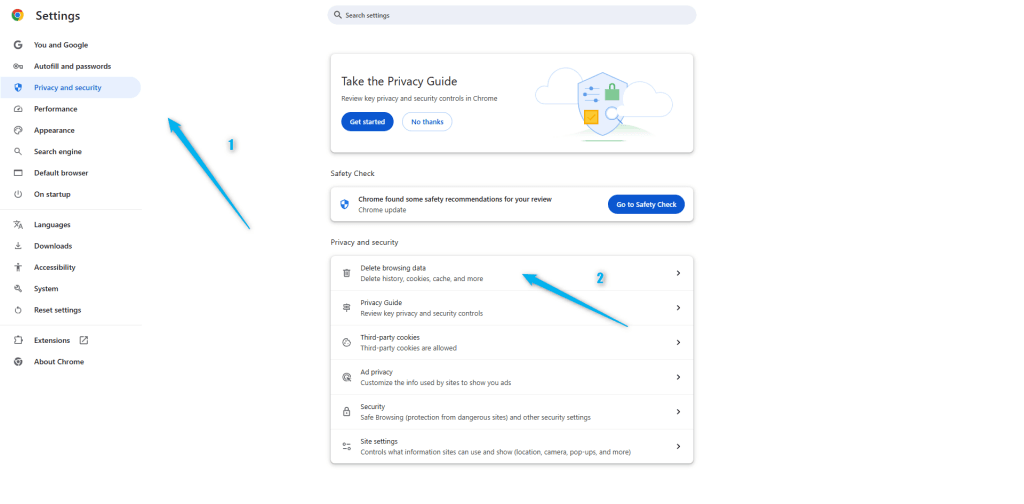
Choose the “Privacy and security” tab (1) and click “Delete browsing data” (2).
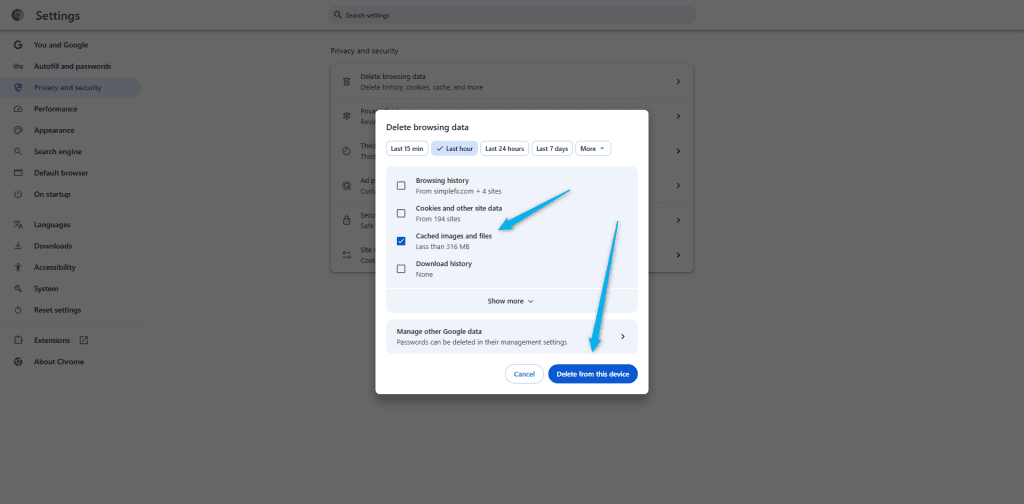
Check the “Cached images and files” box (1), and click the “Delete from this device” button (2).
Reload the app.basitfx.com page and trade with the newest version of our app.
Firefox
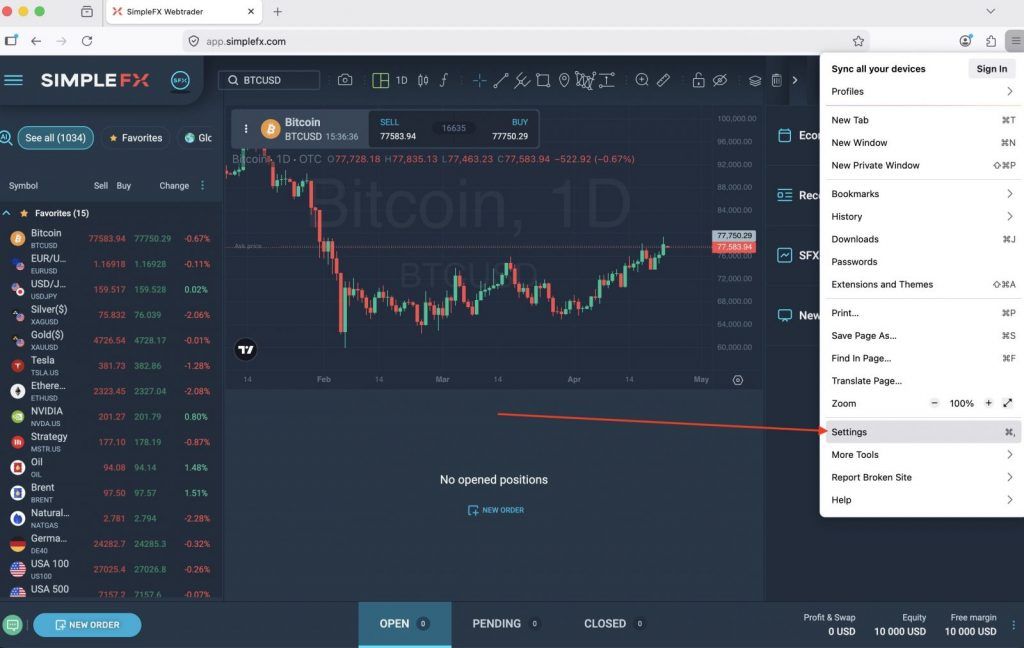
Go to the main menu in the top-right corner of the browser.
Pick “Settings”.
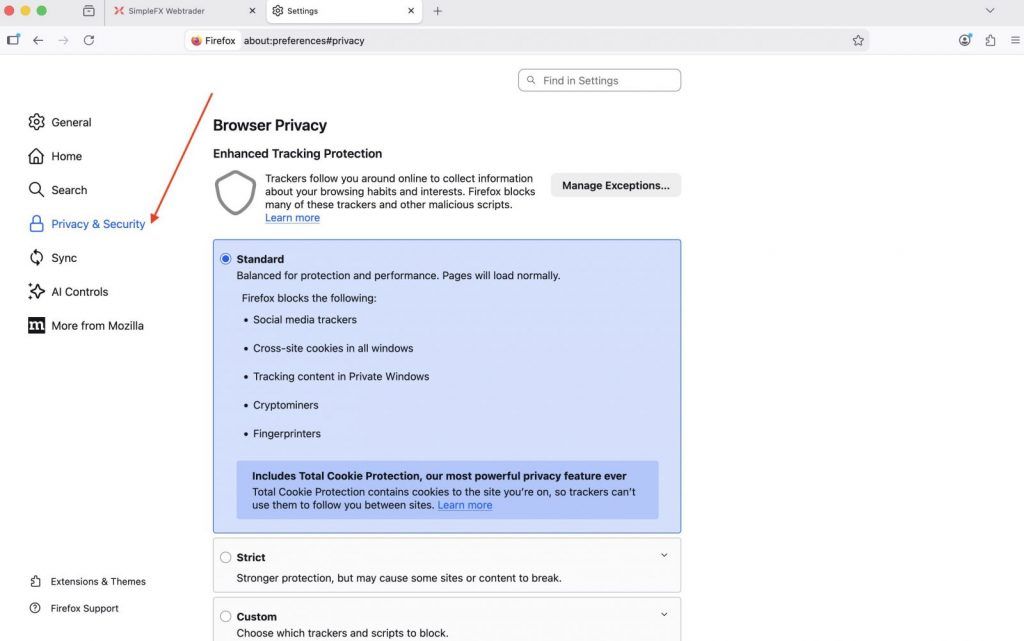
Go to the “Privacy & Security” tab.
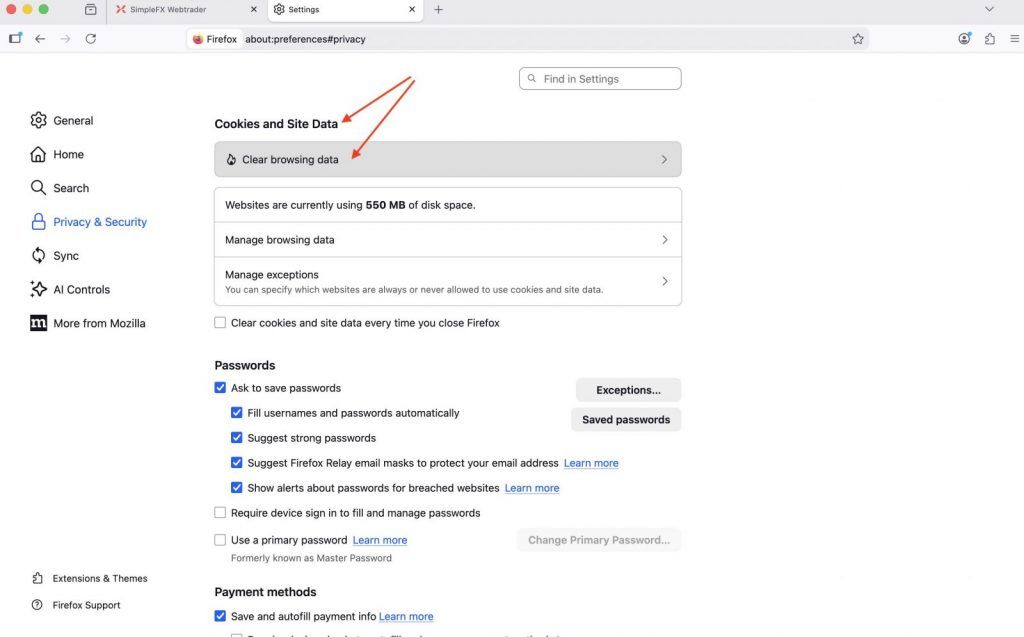
Scroll down to “Cookies and Site Data” section, and click “Clear browsing data…” button.
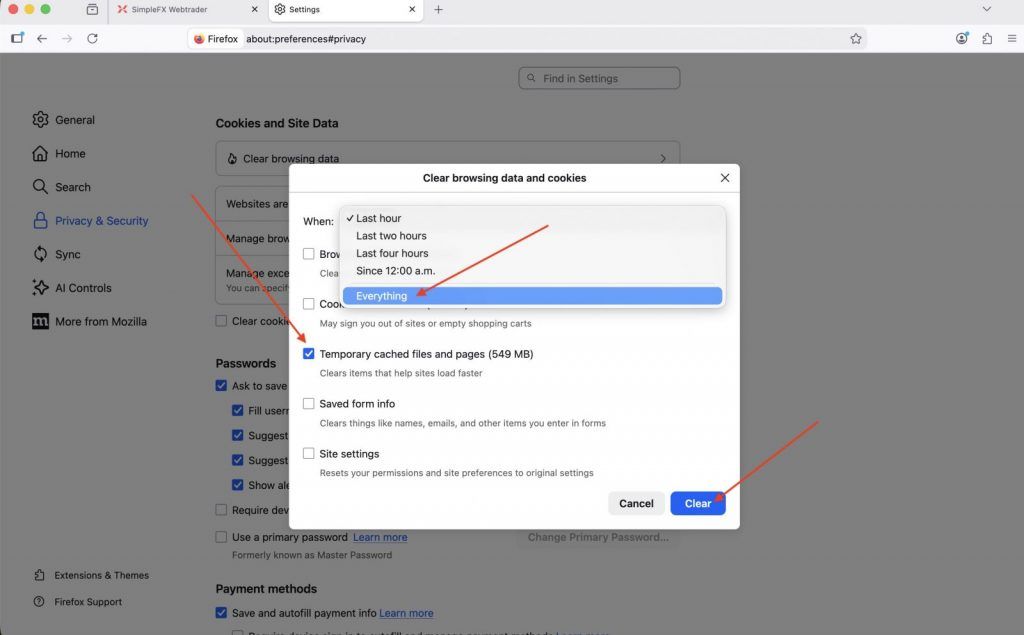
Check “Temporary cached files and pages”, make sure to change “Last hour” into “Everything” and click the “Clear” button.
Reload your page, and enjoy the new version of SimpleFX WebTrader.
Safari
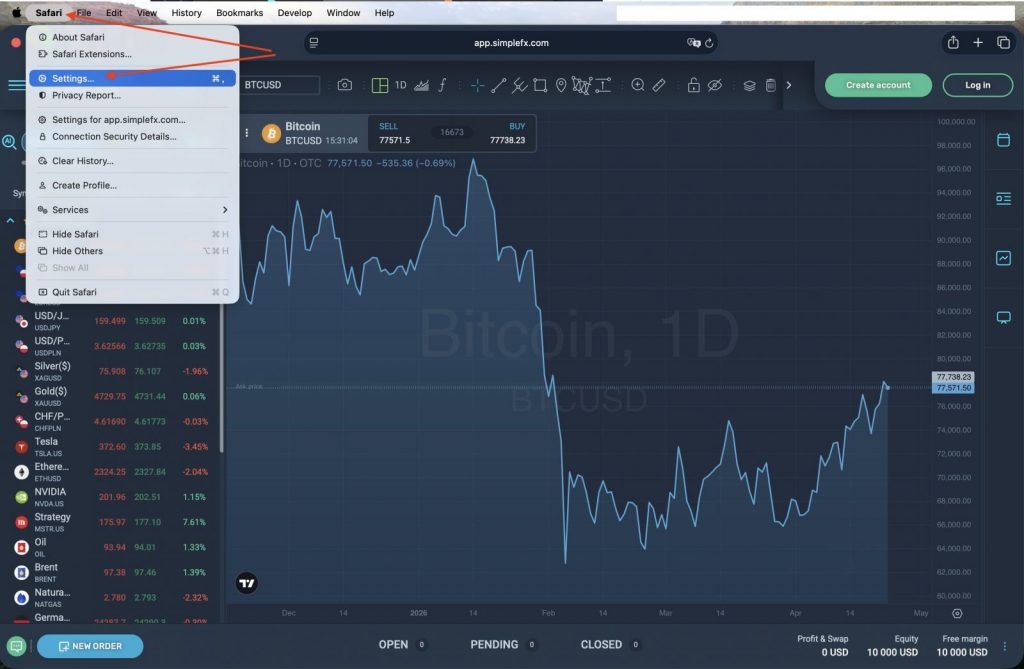
In Apple’s browser, go to “Safari” in the main top-bar menu (1), and choose “Settings” (2).
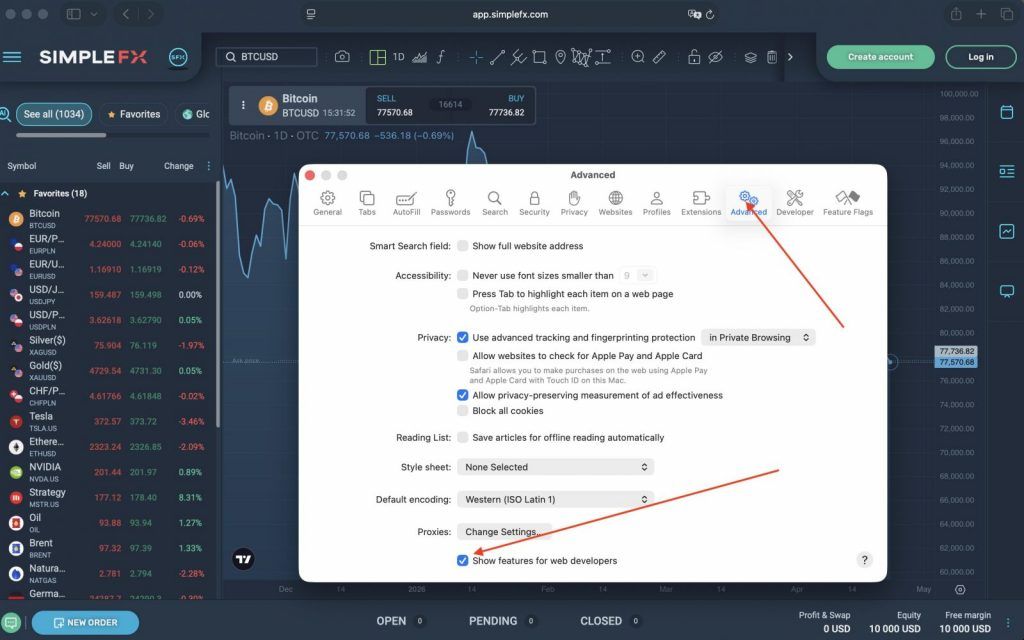
Go to “Advanced” options (1), and toggle the “Show features for web developers” checkbox (2).
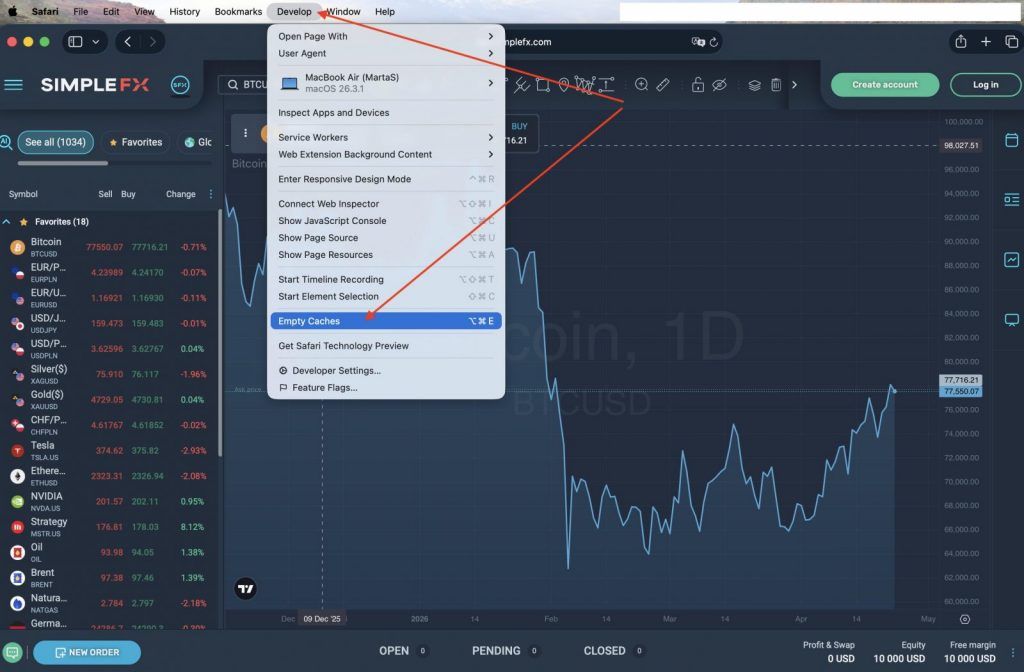
Now in the top menu bar go to “Develop”, and click “Empty Caches”.
Reload your page and enjoy the new SimpleFX WebTrader app.